


How to Use Google Sheets to Build a Simple Budget Template
- Oct 28, 2025
- 6 min read
Disclosure: I may earn a small commission for purchases made through affiliate links in this post at no extra cost to you. I only recommend products I truly believe in. Thank you for supporting my site!
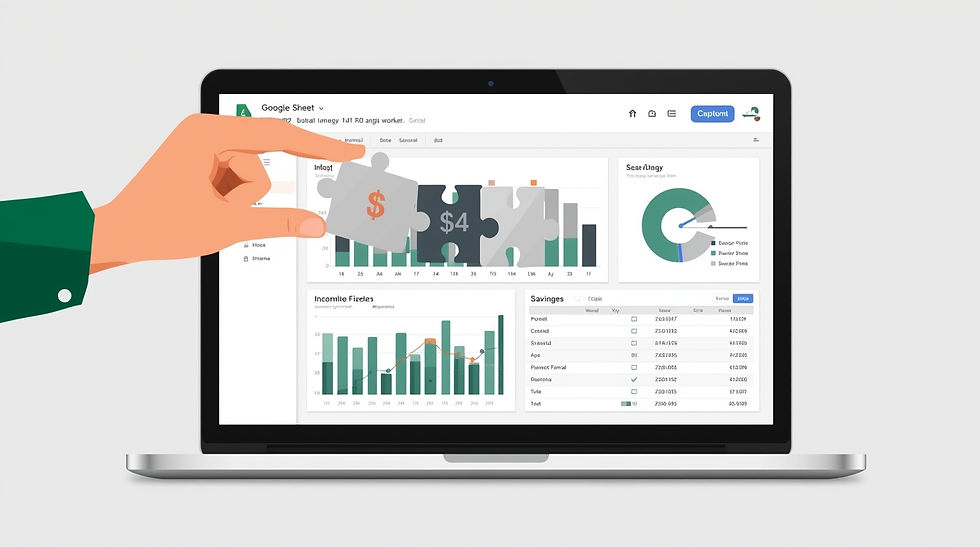
You want to take control of your finances, but the thought of complicated software or monthly subscription fees holds you back. What if you could create a custom budget using a tool you already know? Google Sheets is free, accessible from any device, and surprisingly powerful for building a budget that works exactly how you need it to. This guide will walk you through creating a simple but effective budget template step by step.
Why Choose Google Sheets for Budgeting?
Before we dive into building, let's talk about why Google Sheets is such a great choice for budgeting. Think of it as having a custom-made financial tool rather than buying something off the shelf. You get to decide what features matter most to you.
Key Advantages:
It's completely free - No subscriptions or hidden costs
Accessible anywhere - Works on your phone, tablet, or computer
Customizable - You control the layout and features
Private - Your financial data stays with you
Automatic saving - Never lose your work
Unlike rigid budgeting apps, a Google Sheets template grows with you. As your financial needs change, you can easily modify your template.
The National Endowment for Financial Education emphasizes that the most effective budgeting system is one you'll actually use consistently, and for many people, that means a simple, customizable solution.
Getting Started: Setting Up Your Basic Framework
Step 1: Create Your New Spreadsheet
Go to Google Sheets and sign in to your Google account
Click on the colorful "+" button to create a new spreadsheet
Rename your file by clicking on "Untitled spreadsheet" - call it something like "My Personal Budget 2025"
Pro Tip: Use a clear, descriptive name and include the year. This makes it easy to find later and helps when you want to create a new version for next year.
Step 2: Set Up Your Income Section
Let's start with the money coming in. This gives you the foundation for your entire budget.
In cell A1, type "Monthly Income"
In cell A2, type "Income Source"
In cell B2, type "Amount"
In cell A3, type your primary income source (like "Main Job")
In cell A4, type any additional income sources (side hustles, freelance work, etc.)
Example Layout:
text
A1: Monthly Income
A2: Income Source    B2: Amount
A3: Main Job        B3: $3,500
A4: Freelance Work  B4: $400
A5: Total Income    B5: =SUM(B3:B4)
The formula in B5 automatically adds up all your income sources. If you get a raise or add new income, just update the numbers - the total will recalculate automatically.
Building Your Expense Categories
Step 3: Create Your Fixed Expenses Section
Fixed expenses are the bills that stay the same each month. These are your financial foundation.
In cell D1, type "Fixed Monthly Expenses"
In cell D2, type "Expense Category"
In cell E2, type "Amount"
List your fixed expenses in cells D3 through D10
Common fixed expenses:
Rent/Mortgage
Car Payment
Insurance
Subscriptions
Loan Payments
Pro Tip: Use the Consumer Financial Protection Bureau's budgeting worksheet as inspiration for categories that might apply to your situation.
Step 4: Set Up Variable Expenses
Variable expenses change each month but are still essential. This is where most people lose track of their money.
In cell G1, type "Variable Expenses"
In cell G2, type "Category" and in H2 type "Budgeted Amount"
Common variable expense categories:
Groceries
Gas/Transportation
Utilities
Entertainment
Dining Out
Personal Care
Adding Powerful Formulas
Formulas are what turn a simple spreadsheet into a smart budgeting tool. Don't worry - they're easier than they look!
Essential Formulas for Your Budget:
1. The SUM FunctionThis adds up numbers in a range of cells.
Example: =SUM(B3:B4) adds cells B3 and B4
Use this for your income total and expense totals
2. Simple SubtractionTrack what's left after expenses:
=B5-E11 (Total Income minus Total Fixed Expenses)
3. Percentage CalculationsSee what percentage of your income goes to each category:
=E3/$B$5 (Fixed expense divided by total income)
The dollar signs ($) lock the cell reference so you can copy the formula to other cells.
Creating Your Monthly Summary Section

This is your budget's command center - where you'll see the big picture at a glance.
Set up in columns J and K:
text
J1: Monthly Summary
J2: Total Income          K2: [link to your income total]
J3: Total Fixed Expenses  K3: [link to fixed expenses total]
J4: Total Variable Budget K4: [link to variable budget total]
J5: Remaining Money       K5: =K2-K3-K4
To create the links, simply type "=" in the cell, then click on the cell containing the total you want to reference. Google Sheets will automatically create the connection.
Making Your Budget Visual
Charts help you understand your financial patterns quickly. Let's create a simple pie chart.
Select your fixed expense categories and amounts
Click "Insert" > "Chart"
In the Chart Editor, choose "Pie chart"
Customize the colors and labels to make it clear
This visual representation helps you instantly see where your money is going. If your housing slice is taking up half the pie, you'll know immediately that you might need to adjust.
Advanced Features for Power Users
Once you're comfortable with the basics, these features can take your budget to the next level.
1. Conditional Formatting
Make your budget visually alert you to problems:
Select your "Remaining Money" cell
Click "Format" > "Conditional formatting"
Set rules like:
If less than $0 → Red background
If between $0-$100 → Yellow background
If over $100 → Green background
2. Multiple Monthly Tabs
Create a year-long budget:
Click the "+" button at the bottom to add new sheets
Rename each tab by month (January, February, etc.)
Right-click on a tab and "Duplicate" to copy your template
3. Data Validation for Clean Data
Ensure consistent data entry:
Select your expense category cells
Click "Data" > "Data validation"
Choose "List of items" and enter your categories separated by commas
Now you can only choose from your predefined categories
Mobile Access: Budgeting On the Go
The Google Sheets app turns your phone into a portable budget tracker. Here's how to make mobile budgeting work:
Optimize for Mobile:
Use larger font sizes
Keep important summary info at the top
Freeze the top row (View > Freeze > 1 row)
Practice entering a few transactions to get comfortable
Mobile Tips:
Set a daily reminder to log expenses
Take photos of receipts and log them immediately
Use voice-to-text for quick entry
Enable offline mode for times without internet
Maintaining Your Budget
Creating the template is just the beginning. Here's how to make budgeting a sustainable habit.
Weekly Maintenance Routine (15 minutes):
Review transactions - Check that everything is categorized correctly
Update balances - Enter any missing expenses
Check your remaining amounts - Adjust spending if needed
Plan for upcoming expenses - Look at the week ahead
Monthly Review (30 minutes):
Analyze your spending patterns - Use your charts and totals
Adjust next month's budget - Based on what you learned
Celebrate wins - Acknowledge your progress
Set new goals - What do you want to achieve next month?
Troubleshooting Common Issues
"I keep forgetting to update my budget":
Set a daily phone reminder
Keep a shortcut to your sheet on your phone's home screen
Make it part of an existing habit (like after your morning coffee)
"My categories don't work for my spending":
That's okay! Your budget should evolve
Add new categories as needed
Combine categories that are too specific
"The numbers don't add up":
Check for typos in your amounts
Verify your formula ranges include all cells
Look for missing negative signs on expenses
Taking It Further: Customizing Your Template

Once you're comfortable, make the template truly yours:
Add a Savings Goal Tracker:Create a visual progress bar using the SPARKLINE function:=SPARKLINE(C3,{"charttype","bar";"max",C4})
Incorporate Sinking Funds:Set up separate sections for annual expenses (like car insurance or holiday gifts) and divide the total by 12.
Create a Debt Payoff Plan:Use the SNOWBALL method by listing debts from smallest to largest and tracking your progress as you pay them off.
Security and Privacy Considerations
Since you're storing financial information, take these precautions:
Enable two-factor authentication on your Google account
Don't share the sheet unless absolutely necessary
Consider using generic category names rather than specific merchant names
Regularly check your Google account security settings
The Google Safety Center provides updated information on keeping your account secure.
Making It a Habit
The most beautiful budget template is useless if you don't use it consistently. Here's how to build the habit:
Start Small: For the first month, focus only on tracking income and expenses without judgment.
Schedule It: Put "budget time" in your calendar like any other important appointment.
Find Your Why: Keep your financial goals visible - are you saving for a house? Planning a vacation? Getting out of debt?
Be Kind to Yourself: Miss a day? No problem. Just get back to it. Perfection isn't the goal - awareness is.
Remember: Your budget is a tool to serve you, not a taskmaster to punish you. As you become more comfortable with Google Sheets, you'll discover new ways to make it work for your unique financial situation.
The goal isn't to create the perfect budget on day one, but to build something that helps you make better financial decisions over time.


Comments